
Anúncios
Is your phone battery draining faster than you’d like? Discover how specialized apps can extend your device’s life and improve daily performance.
Modern smartphones pack incredible power, but battery technology hasn’t kept pace with our growing demands. Between social media, streaming, navigation, and constant connectivity, most users struggle to make it through a full day without reaching for a charger.
Battery optimization apps offer a practical solution by identifying power-hungry processes, managing background activity, and providing actionable insights into your device’s energy consumption. These tools help you understand what’s draining your battery and how to fix it.
🔋 Why Your Smartphone Battery Drains So Quickly
Understanding the culprits behind rapid battery depletion is the first step toward solving the problem. Several factors contribute to faster-than-expected energy consumption on modern devices.


Screen brightness remains one of the biggest power consumers. Many users keep their displays at maximum brightness unnecessarily, draining 20-30% more power than needed. Adaptive brightness settings help, but manual adjustments based on environment prove more effective.
Background app activity silently consumes resources even when you’re not actively using your phone. Apps refresh content, sync data, and run processes that chip away at battery life throughout the day. Social media platforms, email clients, and news apps are frequent offenders.
Location services constantly ping GPS satellites, cell towers, and Wi-Fi networks to determine your position. While useful for navigation and location-based services, continuous tracking significantly impacts battery longevity.
Push notifications wake your device repeatedly, activating the screen and processor dozens or hundreds of times daily. Each notification requires power to receive, process, display, and potentially vibrate or sound an alert.
Temperature Effects on Battery Performance
Extreme temperatures dramatically affect lithium-ion battery efficiency. Heat above 95°F (35°C) accelerates chemical degradation, while cold below 32°F (0°C) temporarily reduces capacity. Battery optimization apps monitor temperature and provide warnings when conditions become harmful.
Leaving your phone in direct sunlight, hot cars, or near heating sources creates long-term damage. Similarly, using intensive apps while charging generates excess heat that compounds the problem.
📱 How Battery Optimization Apps Actually Work
These specialized applications employ multiple strategies to extend your device’s runtime between charges. Rather than magic solutions, they provide visibility and control over power consumption.
Real-time monitoring tracks which apps and processes consume the most energy. Detailed breakdowns show battery usage percentages, screen-on time, and estimated remaining runtime based on current usage patterns.
Intelligent power management identifies unnecessary background processes and offers to restrict them. This doesn’t mean closing apps completely—modern operating systems handle memory management efficiently—but rather limiting background refresh and sync activities.
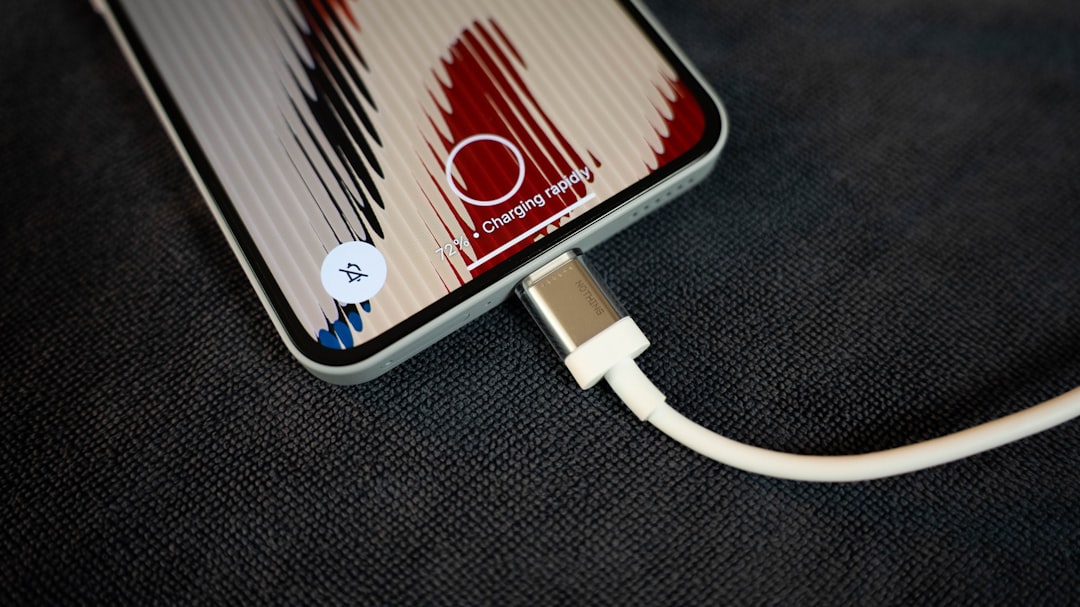
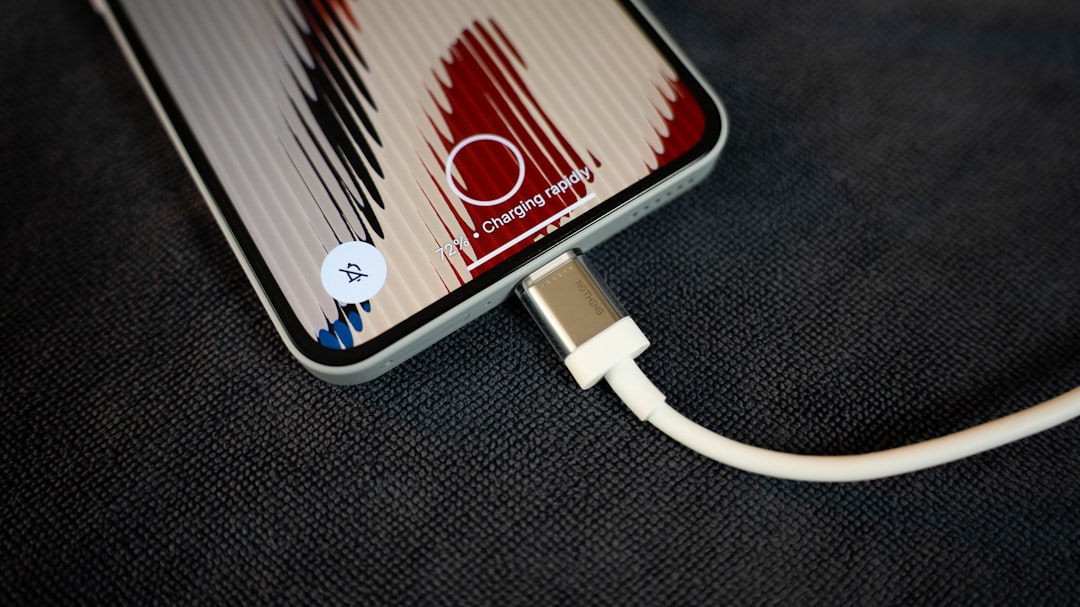
Charging optimization features protect battery health over the long term. Fast charging is convenient but generates heat and stress. Quality apps recommend charging strategies that balance speed with longevity, such as charging to 80% instead of 100% for daily use.
Battery Health Diagnostics
Capacity naturally degrades over time as batteries undergo charge cycles. Optimization apps measure current capacity against original specifications, providing a health percentage.
A new battery operates at approximately 100% capacity. After 500 complete charge cycles (roughly 1.5-2 years of typical use), capacity might drop to 80-85%. Apps track this degradation and suggest when replacement becomes necessary.
| Battery Health | Capacity Remaining | Recommendation |
|---|---|---|
| Excellent | 95-100% | Continue normal usage |
| Good | 85-94% | Monitor charging habits |
| Fair | 75-84% | Adjust charging patterns |
| Poor | Below 75% | Consider replacement |
⚡ Key Features to Look for in Battery Apps
Not all optimization tools deliver equal value. Focus on applications that provide actionable information rather than cosmetic animations and placebo features.
Accurate battery statistics represent the foundation of any useful app. Look for detailed breakdowns showing consumption by app, hardware component (screen, processor, connectivity), and time period.
Charging cycle tracking helps you understand how usage patterns affect battery longevity. Apps that record partial and full charge cycles provide insights into optimal charging behaviors.
Alarm functionality prevents overcharging by alerting you when the battery reaches your target percentage. This feature proves especially useful overnight, allowing you to unplug at 80-85% rather than keeping the device at 100% for hours.
Custom Power Modes
Adaptive power profiles adjust settings based on your situation. A “work mode” might prioritize connectivity and notifications, while “entertainment mode” optimizes for screen quality and audio performance.
Creating custom modes for specific scenarios—commuting, exercise, sleep—automates power management without constant manual adjustments. Smart apps learn your routines and suggest appropriate profiles.

🛠️ Practical Steps for Maximum Battery Efficiency
Installing an optimization app represents just the starting point. Implementing recommended changes makes the actual difference in daily battery performance.
Begin by reviewing your battery usage statistics over 3-5 days to identify patterns. Note which apps consistently appear at the top of the consumption list and evaluate whether their battery usage aligns with the value they provide.
Disable unnecessary notifications from apps that don’t require immediate attention. Check each app’s settings and turn off push notifications for social media, news, and promotional content. Fetch new content manually or on a schedule instead.
Reduce background app refresh for applications you don’t use frequently. Email clients don’t need to check every 15 minutes—hourly checks suffice for most users. Social media apps definitely don’t need constant background updates.
Display Optimization Techniques
Screen technology consumes 30-50% of total battery capacity on average. Small adjustments yield significant improvements.
- Lower brightness to 40-60% in indoor environments
- Enable dark mode on OLED/AMOLED screens to reduce pixel illumination
- Reduce screen timeout to 30-60 seconds of inactivity
- Disable always-on display features unless absolutely necessary
- Turn off adaptive brightness and control manually for better efficiency
Dynamic refresh rates (120Hz, 90Hz) on newer devices create smoother animations but consume more power. Switching to standard 60Hz saves 10-15% battery life with minimal impact on daily tasks.
📊 Understanding Battery Capacity and Charge Cycles
Lithium-ion batteries operate differently than older battery technologies. Understanding their chemistry helps you make informed decisions about charging and usage.
A complete charge cycle occurs when you discharge 100% of battery capacity—not necessarily in one session. Using 50% today and 50% tomorrow equals one full cycle, the same as draining from 100% to 0% in a single use.
Partial charging actually benefits battery longevity. Keeping charge levels between 20-80% reduces stress on battery cells. Frequent small charges prove healthier than complete drain-and-charge cycles.
Modern devices include circuits preventing overcharging damage, but staying at 100% for extended periods (like overnight charging) keeps cells under voltage stress. Optimization apps help you avoid this scenario through alerts and charging recommendations.
Fast Charging Trade-offs
Quick charge technologies push higher wattage to batteries, filling them rapidly but generating significant heat. This convenience comes with accelerated capacity degradation over time.
Reserve fast charging for situations requiring rapid power boosts. For overnight or desk charging, standard speeds minimize heat buildup and extend battery lifespan. Many optimization apps include settings to limit charging speed automatically.
🌐 Connectivity Management for Battery Savings
Wireless radios—Wi-Fi, Bluetooth, cellular data, GPS—constantly search for connections and transmit data. Smart management of these features produces measurable improvements.
Wi-Fi consumes less power than cellular data for internet connectivity. When available, prioritize Wi-Fi networks over 4G/5G connections. However, leaving Wi-Fi enabled while away from known networks wastes power through constant scanning.
Bluetooth Low Energy (BLE) used by modern accessories draws minimal power when connected. The drain comes from discovery mode—when your phone searches for available devices. Disable Bluetooth when not actively using wireless headphones or wearables.
GPS represents one of the most power-intensive features. Apps requesting constant location access (weather, social media, shopping) drain batteries significantly. Switch location permissions to “while using app” instead of “always” for non-navigation applications.
Airplane Mode Strategies
In areas with poor cellular coverage, phones increase transmission power trying to maintain connections. This creates substantial battery drain without providing useful connectivity.
Activating airplane mode in low-signal environments (basements, rural areas, flights) prevents futile connection attempts. You can re-enable Wi-Fi separately if available, maintaining internet access while saving cellular radio power.
🎯 App-Specific Optimization Tactics
Different application categories present unique optimization opportunities. Targeted adjustments maximize efficiency without sacrificing functionality.
Social media platforms employ aggressive background refresh to deliver real-time updates. Restrict background data access and set manual refresh instead. Check feeds when you choose rather than allowing constant updates.
Streaming services consume power through screen usage and data transmission. Download content over Wi-Fi for offline viewing when possible. Reduce video quality settings—1080p instead of 4K on a 6-inch screen provides negligible visual difference but significant battery savings.
Gaming applications utilize processor-intensive graphics and constant screen interaction. Lower graphic quality settings, reduce brightness specifically during gaming sessions, and close games completely when finished rather than leaving them running in background.
Email and Messaging Optimization
Email clients constantly poll servers for new messages. Change from push to fetch mode, checking at scheduled intervals (30-60 minutes) rather than instantly. Critical contacts can still reach you through calls or SMS.
Messaging apps like WhatsApp, Telegram, and Signal use end-to-end encryption that requires processing power. Disable automatic media downloads—especially videos—which consume both battery and data unnecessarily.
💡 Advanced Battery Preservation Methods
Power users can implement additional strategies for extreme battery conservation when needed.
Aggressive doze mode on Android restricts app activity when the device remains stationary. Third-party optimization apps can enhance default doze behavior, entering power-saving states more quickly.
Disable vibration feedback for keyboard typing and notifications. The haptic motor consumes surprising amounts of power during frequent daily activations. Visual and audio alerts provide sufficient notification.
Uninstall or disable pre-installed apps (bloatware) that you never use. Manufacturers and carriers often include applications that run background processes despite zero user interaction. Removing these frees resources and eliminates unnecessary power drain.
Widget Management
Home screen widgets continuously refresh to display updated information. Weather widgets, news feeds, and social media previews request data throughout the day.
Evaluate each widget’s value against its battery cost. Removing rarely-viewed widgets reduces background refresh cycles. Launch apps directly when you need information rather than maintaining constantly updated previews.
🔍 Monitoring Long-term Battery Health
Battery capacity inevitably declines, but tracking degradation helps you make informed decisions about device usage and replacement timing.
Quality optimization apps maintain historical records of battery health measurements. Reviewing trends over months reveals whether degradation follows expected patterns or indicates problems requiring attention.
Sudden capacity drops suggest potential defects or damage. If health decreases by 10% or more within weeks, consider professional diagnostics. Manufacturing defects sometimes become apparent after months of use.
Temperature logs identify harmful patterns. If your device regularly exceeds safe operating temperatures, adjust usage habits or environment. Chronic overheating accelerates degradation exponentially.
When to Replace Your Battery
Most manufacturers design batteries to retain 80% capacity after 500 complete charge cycles. Heavy users might reach this threshold within 18 months, while moderate users take 2-3 years.
Performance throttling becomes noticeable below 80% capacity. Devices may shut down unexpectedly at low percentages as weakened batteries can’t deliver required power bursts. Official replacement services restore original performance and longevity.
🚀 Getting Started with Battery Optimization Today
Implementing battery optimization doesn’t require technical expertise or dramatic lifestyle changes. Start with high-impact, low-effort adjustments.
Download a reputable battery optimization app and allow it to collect data for 2-3 days before making changes. This baseline reveals your actual usage patterns rather than assumptions.
Focus on the top three battery-consuming apps identified by your monitoring tool. Research whether alternatives exist that provide similar functionality with better efficiency. Sometimes switching from one social media client to another saves 20-30% battery usage.
Implement one major change at a time and evaluate its impact over several days. Changing everything simultaneously makes it impossible to identify which adjustments provide real benefits.
Schedule a weekly review of your battery statistics. Spend five minutes examining trends, noting improvements, and identifying new optimization opportunities. This habit maintains awareness and prevents efficiency drift over time.
Battery optimization combines smart tool selection with informed usage decisions. The right app provides visibility into consumption patterns, while your behavioral adjustments create actual power savings. Together, these approaches extend daily runtime and preserve long-term battery health, ensuring your device reliably serves your needs throughout its lifespan.
